Terminal-First Remote Development: My Complete Workflow with SSH, tmux, and Neovim
A Shift in Perspective 🧐
Coming from a traditional Windows background, I learnt early on that having a mouse and GUI was essential to getting work done. Over the years, I have slowly realized that getting work done fast is best.
Now, in the era of LLMs and AI, I have found an appreciation for seeing the world through the same lense as the AI models. This means a text-first, keyboard-centric, serial workflow.
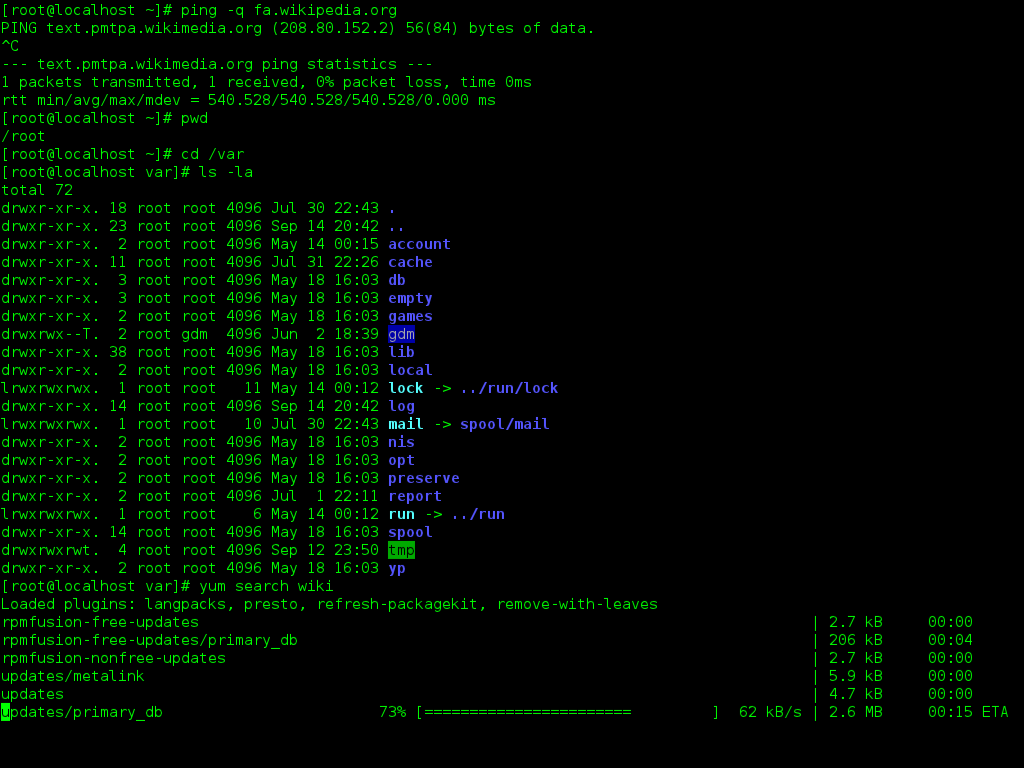
This perspective shift combined with heavy use of LLMs has made me rethink my entire workflow.
My toolset 🛠 ️
Hardware 💻
Here are the essential tools I use on a daily basis, ranked by frequency of use:
My very first laptop ❤️: Though I have newer laptops, I still use and repurpose my old 2010 Asus laptop, model U35JC-A1 (13.3”), now running a no-GUI server-only Debian 12 linux distribution. I choose Debian is a low resource OS that allows me to focus on the terminal and text-based workflows, and is supported by a wide range of tools and packages. It is also a great way to learn linux and the command line.

You do not need a fancy laptop (or an old laptop) to get started. Any laptop will do. I would recommend at least 8GB of RAM and a decent CPU. SSD is a must.
On this laptop, I run a few essential tools that help me stay productive:
- Tailscale: It helps me create a secure, private network between my devices. It is a simple, reliable, and easy-to-use tool for creating a secure network. This way I can access my laptop from anywhere in the world without worrying about firewalls or NAT.
- SSH: I use SSH to access remote machines. It is a secure, reliable, and easy-to-use protocol for secure remote access.

Software 💿
For development my new go-to setup is:
- Devbox: It helps me manage my development environments. It is a lightweight, fast, and easy-to-use tool for creating and managing isolated development environments.

- Terminal Multiplexer: I use tmux to manage multiple terminal sessions within a single window. This allows me to switch between tasks quickly without losing context. Another fun feature is that tmux sessions can be detached and reattached later, allowing me to keep my work running even if I disconnect from the remote machine (intentionally or unintentionally).
- Tmuxinator: A tool to manage complex tmux sessions. It allows me to define and manage multiple tmux sessions with a single command. The YAML based configuration is also way easier to manage than tmux’s native configuration.

- Tmuxinator: A tool to manage complex tmux sessions. It allows me to define and manage multiple tmux sessions with a single command. The YAML based configuration is also way easier to manage than tmux’s native configuration.
- Neovim: I use Neovim as my primary code editor. It is a fast, lightweight, and highly extensible text editor with a rich set of features.
- AstroNvim: A highly customizable Neovim configuration that comes with a lot of pre-configured plugins and settings. It is a great starting point for anyone looking to get into Neovim.

- AstroNvim: A highly customizable Neovim configuration that comes with a lot of pre-configured plugins and settings. It is a great starting point for anyone looking to get into Neovim.
- Lazygit: I use Lazygit as my primary git client. It is a fast, lightweight, and highly extensible git client with a rich set of features. It is the closest thing to a GUI git client that I have found for the terminal.

AI 🧠
- Claude Code: I use this as my primary LLM. It is a powerful, flexible, and easy-to-use model for generating code and text. Also seems to be the most reliable and consistent model for general use.
- Gemini CLI: I use this as my secondary LLM. Though free tier is limited, it has a longer context window and is great for creative writing, brainstorming and ideation.
- Ollama: Surprisingly good local LLMs exist that can run on low-end hardware (e.g. smollm:135m). I use this for micro-tasks that do not require internet access or high reliability.
My Workflow 🔁
| Step | Action | Time (approx) |
|---|---|---|
| 1. | On either my main laptop or usually my phone, I connect to Tailscale to access my remote laptop. | ⏱️ ~500ms |
| 2. | I SSH into my remote laptop (either Termux on Android or WebSSH on iOS). | ⏱️ ~1sec with common ssh scripts |
| 3. | Inside the SSH session, I change directory to the project I want to work on. | ⏱️ ~1sec with zsh history and last commands |
| 4. | I start a tmux session using tmuxinator, usually via devbox run tmux which is a wrapper for tmuxinator. Check this repo’s devbox.json file for details. | ⏱️ ~1sec for new session, ~300ms for existing session |
| 5. | Inside the tmux session, I start working with either Claude Code or NeoVim or run terminal commands as needed. | ⏱️ ~♾️ |
With Claude Code and other agentic LLMs, I can do a lot of my work on the go. Learning to prompt effectively is a skill in itself, but once mastered, it can be a game-changer.
Continuously changing LLM models also means that the effective prompts you learn today may not work tomorrow. So it is essential to keep learning and adapting.
The panultimate goal is to use LLMs that are so sophisticated that I no longer need to develop prompting skills. But we are not there yet ☯️
Pro Tips 💡
Find the right tools:
There are a lot of tools out there, find the ones that work best for you and your workflow. Do not be afraid to try new things and experiment but also be wary of shiny object syndrome. Time-box your experiments to avoid endless rabbit holes. A lot of times you are not alone in your use case, so look for recommendations and reviews from trusted sources (or repeated recommendations from many less trusted sources).
Windows to Linux/Terminal Tool Mapping:
| Windows Tool | Linux/Terminal Equivalent | Description |
|---|---|---|
| Task Manager | htop / btop / atop / top | System monitor showing processes, CPU, memory usage |
| File Explorer | lf / ranger / nnn | Terminal-based file managers with navigation |
| Notepad | nano / vim / nvim | Text editors (nano for beginners, vim/nvim for power users) |
| Command Prompt | bash / zsh / fish | Shell environments for running commands |
| PowerShell | bash / zsh + scripting | Advanced shell with scripting capabilities |
| Control Panel | Various config files / systemctl | System configuration (varies by distro) |
| Device Manager | lsusb / lspci / lshw | Hardware information and management |
| Network Settings | ip / nmcli / iwconfig | Network configuration tools |
| Registry Editor | Config files in /etc/ | System configuration (text-based) |
| Paint | gimp / krita / imagemagick | Image editing (CLI: imagemagick) |
| Calculator | bc / calc / qalc | Command-line calculators |
| Windows Explorer Search | find / fd / rg (ripgrep) | File and content search tools |
| Disk Management | fdisk / parted / lsblk | Disk partitioning and management |
| Event Viewer | journalctl / dmesg / log files | System logs and events |
| Services | systemctl / service | System service management |
| Performance Monitor | iotop / nethogs / iftop | Resource monitoring tools |
| Windows Update | apt / yum / pacman | Package managers (distro-specific) |
| Clipboard | xclip / wl-clipboard | Clipboard management |
| Screenshot Tool | scrot / flameshot / grim | Screen capture utilities |
VS Code as GUI fallback:
When I am too lazy or tired of the terminal, I use VS Code’s remote SSH extension to connect to my remote laptop and work in a GUI environment. This is especially useful for tasks that require a lot of visual feedback or when I need to use extensions that are not available in the terminal.
VS Code also makes it easy to forward TCP ports from the remote machine to my local machine, allowing me to run web applications and access them via my local browser.
This is only possible on laptops with native VS Code installed. VS Code for the web does not support remote SSH connections yet.
Automate everything:
Use scripts and aliases to automate repetitive tasks. This will save you a lot of time in the long run. My general rule of thumb is if I do something more than 3 times, I automate it.
Now with LLMs, this is easier than ever. You can ask the LLM to generate scripts in any language you want (e.g. bash, python, powershell, etc.) and then modify them (also with LLMs) as needed.
Learn to use the terminal:
The terminal is a powerful tool that can help you get things done quickly. Learn the basics of the command line and how to use it effectively.
The terminal is also a much more efficient way to interact with your computer than a GUI. Both for you and for the machine. Think: Remote Desktop network bandwidth vs. SSH network bandwidth. Same is true for GUI vs. CLI applications and CPU resources for each.
Good luck on your journey and happy coding! 🚀